Adobe Pro for Video Editing: Smarter Workflows, Cinematic Results
Adobe Pro for video editing empowers creators with AI-driven workflows, seamless mobile-desktop integration, advanced masking, and cost-effective plans.
Adobe Pro for Video Editing: Smarter Workflows, Cinematic Results
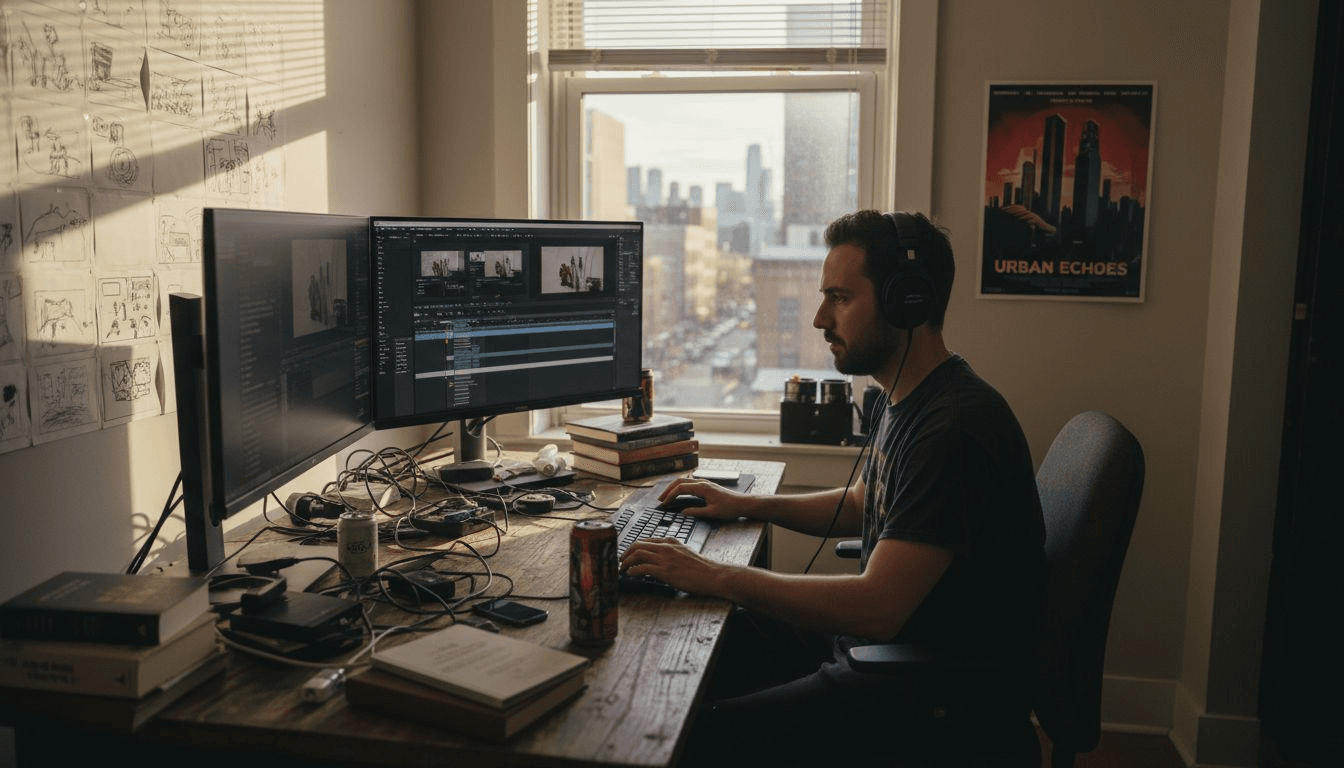
Most independent filmmakers and content creators want cinematic visuals without spending hours learning complicated software. With over 50 percent of American creators relying on user-friendly editing tools, discovering efficient solutions has never been more important. This guide breaks down powerful features, practical workflows, and smart alternatives, helping you elevate your storytelling with professional results even if your technical skills are basic.
Table of Contents
- Adobe Pro Video Editing Fundamentals
- Key AI-Powered Editing Features Explained
- Types Of Workflows: Desktop, Mobile, Cloud
- Seamless Integration With Creative Cloud Apps
- Pricing Models And Cost Comparison
- Common Pitfalls And Alternatives For Creators
Key Takeaways
| Point | Details |
|---|---|
| Understanding Premiere Pro | Master essential tools like the Project Panel, Timeline, and Source Monitor to enhance your editing efficiency. |
| Leverage AI Features | Utilize AI-powered tools for tasks like video extension and caption translation to streamline your editing process. |
| Adopt Hybrid Workflows | Embrace desktop, mobile, and cloud workflows for flexible editing that boosts collaboration and accessibility. |
| Explore Pricing Options | Evaluate subscription tiers based on your project needs to ensure you maximize value while minimizing costs. |
Adobe Pro video editing fundamentals
Video editing might seem complex, but Adobe Premiere Pro provides a robust toolkit for transforming raw footage into polished visual stories. Whether you're a documentary filmmaker or social media content creator, understanding the fundamental tools and workflows is crucial for producing professional results. Video editing fundamentals training offers an excellent starting point for mastering these critical skills.
Premiere Pro's interface centers around several key components that streamline your editing process. These include the Project Panel, where all imported media lives, the Timeline for arranging and trimming clips, and the Source Monitor for previewing individual clips before placement. Mastering these core areas allows creators to build seamless narrative sequences and apply sophisticated editing techniques with precision.
The software supports multiple video formats and provides advanced features like multi-camera editing, color correction, and audio mixing. Creators can leverage powerful tools such as keyframe animations, transitions, and effect presets to elevate their visual storytelling. Professional workflows often involve organizing media strategically, understanding keyboard shortcuts, and developing a systematic approach to constructing compelling visual narratives.
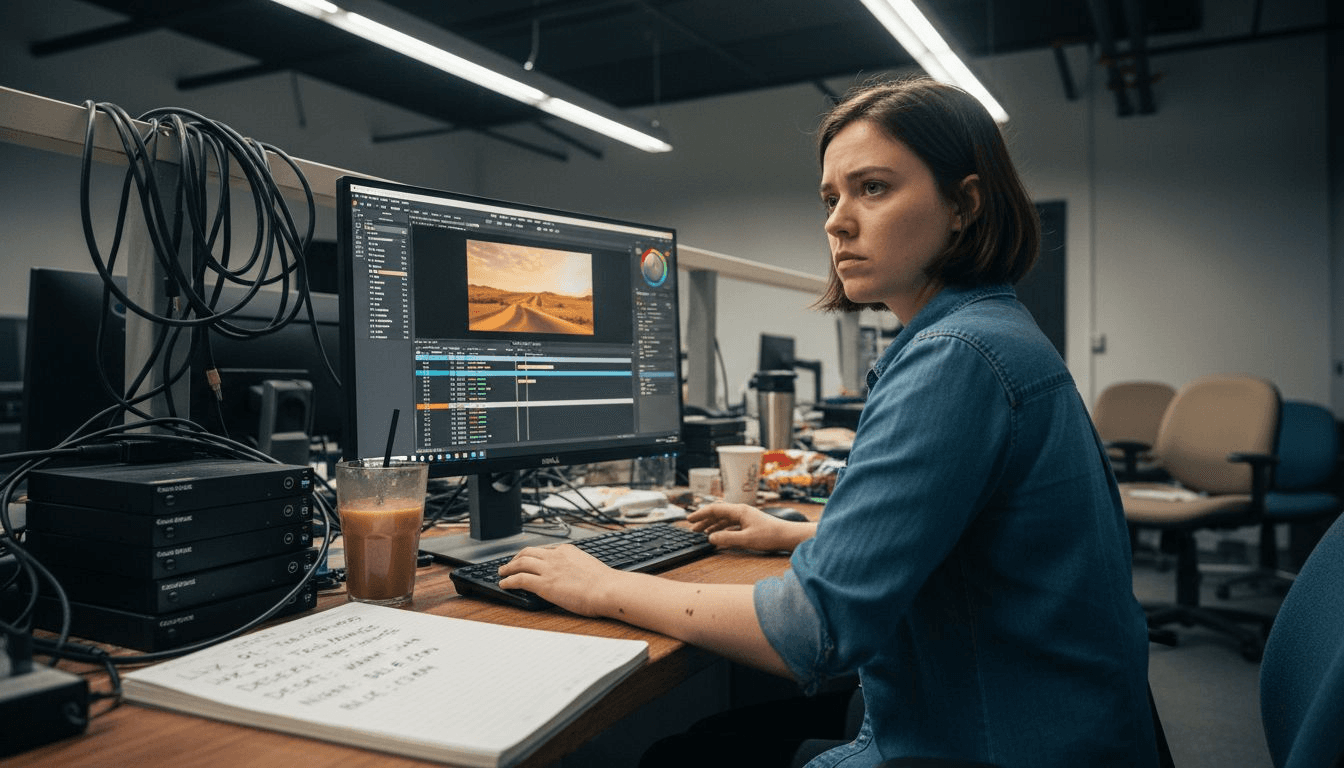
Pro tip: Always organize your project files into logical folders before starting a complex editing project to minimize confusion and streamline your workflow.
Key AI-powered editing features explained
AI technology is revolutionizing video editing, transforming complex post-production workflows into streamlined, intelligent processes. Cutting-edge AI tools are now empowering creators to work faster and more creatively by automating tedious technical tasks. These intelligent features not only save time but also open up new possibilities for visual storytelling.
One of the most powerful AI innovations is Generative Extend, which allows editors to seamlessly lengthen video clips without manually searching for additional footage. This technology uses advanced machine learning algorithms to generate natural, continuous video extensions that match the original clip's style and motion. Another groundbreaking feature is Media Intelligence, which enables rapid, intelligent searching of footage by analyzing visual content, making large media libraries instantly navigable.
Language barriers are also dissolving with AI-powered Caption Translation capabilities. The system supports translations across 27 languages, automatically generating accurate subtitles that preserve the original tone and context. This functionality is particularly valuable for content creators targeting global audiences, enabling quick internationalization of video content without extensive manual translation work.
Pro tip: Experiment with AI editing tools gradually, starting with smaller projects to understand their capabilities and build confidence in integrating these advanced technologies into your workflow.
Types of workflows: desktop, mobile, cloud
Video editing has evolved beyond traditional desktop-only approaches, with modern creators demanding flexible, interconnected workflows across multiple platforms. Hybrid editing workflows now enable seamless transitions between desktop, mobile, and cloud environments, empowering creators to work from virtually anywhere.
Desktop workflows remain the gold standard for intensive post-production tasks. Professional editors rely on powerful desktop applications for complex color grading, multi-camera editing, and high-resolution rendering. Ingest and proxy workflows allow creators to manage high-quality media efficiently, transcoding footage for optimal editing performance across different hardware configurations. These desktop-centric approaches provide unparalleled precision and control for comprehensive video production.
Cloud and mobile workflows represent the next frontier of video editing flexibility. Creators can now collaborate in real-time, share project files instantly, and access footage from multiple devices. Mobile applications extend editing capabilities beyond traditional workstations, allowing rough cuts, basic color correction, and project management directly from smartphones or tablets. This multi-platform approach breaks down geographical barriers and enables truly global creative collaboration.
Pro tip: Configure automatic cloud synchronization settings to ensure your project files are consistently backed up and accessible across all your editing devices.
Here's a summary comparing key video editing workflows:
| Workflow Type | Ideal Use Cases | Platform Strengths | Collaboration Capability |
|---|---|---|---|
| Desktop | High-res film, color grading | Maximum performance, control | Limited to local users |
| Mobile | Social media, rough cuts | Portability, quick editing | Basic, app-dependent |
| Cloud | Team projects, remote work | Real-time access, sharing | Advanced, multi-user |
Seamless integration with Creative Cloud apps
Adobe's Creative Cloud represents a powerful ecosystem designed to streamline creative workflows across multiple applications. Integrated professional workflows enable creators to move seamlessly between different software platforms, breaking down traditional barriers in video and multimedia production.
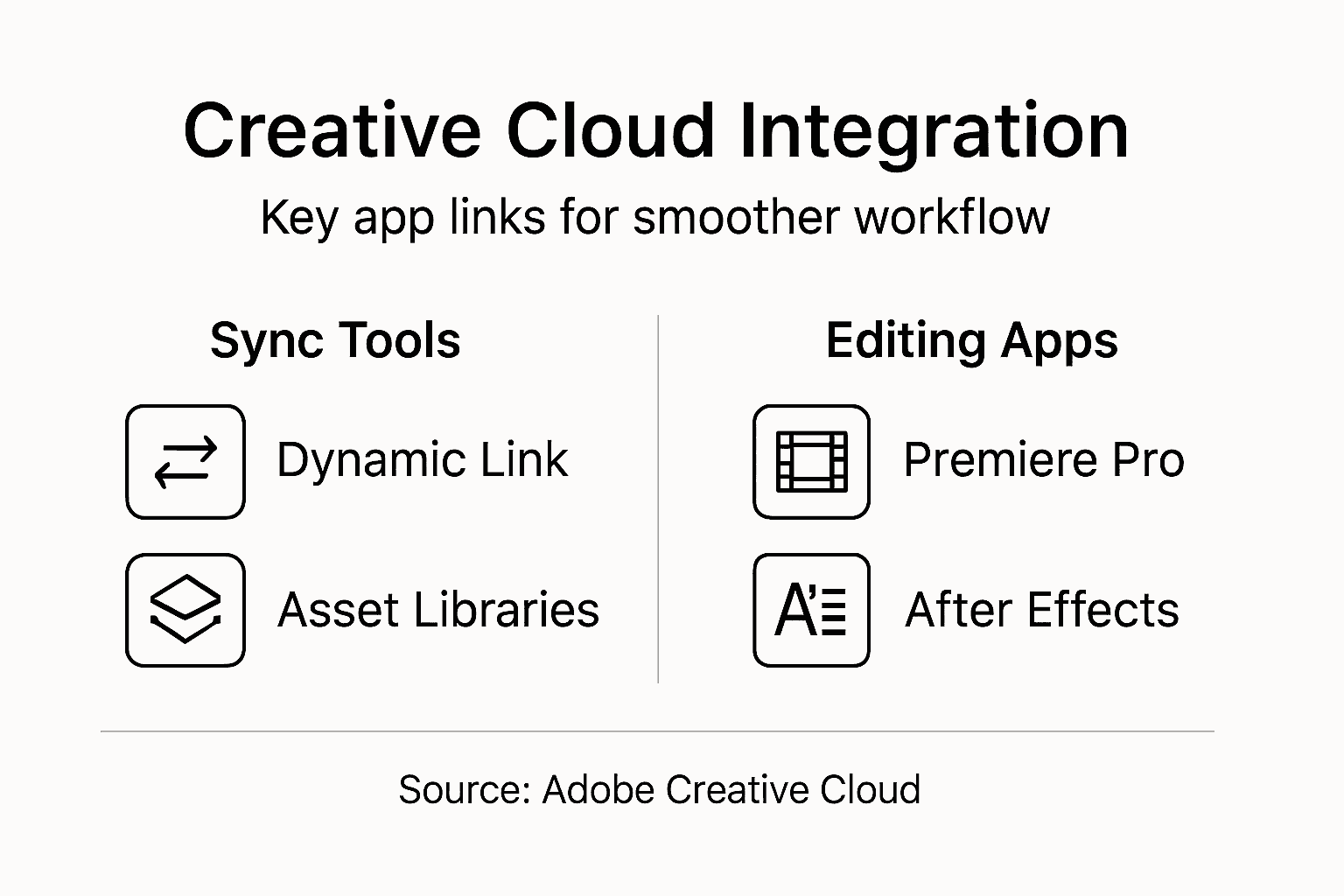
The Dynamic Link feature stands out as a revolutionary tool for interconnected editing. This technology allows real-time content updates between Premiere Pro and other Creative Cloud applications like After Effects and Photoshop. Editors can now make instant modifications to graphics, animations, or color grading without complex rendering processes. For instance, a motion graphic created in Illustrator can be directly imported and dynamically linked to a Premiere Pro project, automatically updating whenever the source file changes.
Creative Cloud Libraries further enhance collaboration and consistency across projects. These shared asset repositories enable teams and individual creators to store and access color palettes, graphics, templates, and design elements across multiple applications. This means a logo designed in Photoshop can be instantly available in Premiere Pro, ensuring brand consistency and dramatically reducing the time spent recreating or searching for assets. The synchronization happens automatically, keeping all team members aligned and reducing potential version control issues.
Pro tip: Set up a standardized Creative Cloud Library for your most frequently used assets to maintain visual consistency and speed up your editing workflow.
Pricing models and cost comparison
Navigating the pricing landscape for professional video editing software can be challenging, with multiple subscription tiers designed to meet different creative needs. Premiere Pro pricing options range from individual creator packages to comprehensive team solutions, providing flexibility for various budget constraints and production requirements.
The subscription model offers three primary tiers targeting different user segments. Individual Creators can access Premiere Pro starting at $22.99 per month, which includes basic cloud storage and access to essential editing tools. Professional Creators have advanced options around $52.99 monthly, incorporating additional Creative Cloud applications like After Effects and Photoshop. Enterprise Team plans, priced at $69.99 per month, provide advanced license management, expanded cloud storage, and collaborative features designed for larger production environments.
Special pricing considerations exist for specific user groups. Students and teachers receive substantial discounts, often accessing the full Creative Cloud suite at dramatically reduced rates. A universal 7-day free trial allows potential users to comprehensively test the software's capabilities before committing to a subscription. Unlike traditional software models, Adobe exclusively offers subscription-based access, ensuring users always have the most recent updates and features without additional purchase requirements.
Pro tip: Compare your specific project needs against each subscription tier, focusing on the tools and storage you'll actually use to maximize value and minimize unnecessary expenses.
Common pitfalls and alternatives for creators
Video editing software landscapes are complex, with each platform presenting unique challenges and opportunities for creators. Software alternatives provide creators multiple pathways to achieve their storytelling goals, depending on specific project requirements and budget constraints.
Common pitfalls in professional video editing platforms often include steep learning curves, performance limitations, and high subscription costs. Performance Issues frequently emerge when editing high-resolution video on less powerful hardware, causing rendering delays and workflow interruptions. Interface Complexity represents another significant challenge, where sophisticated tools can overwhelm beginners, creating barriers to efficient content creation. Alternative platforms like Camtasia, Descript, and Wondershare Filmora offer simplified interfaces and more accessible editing experiences, targeting creators who prioritize ease of use over advanced professional features.
Each alternative software brings unique strengths to address specific creator needs. Descript provides AI-powered editing capabilities ideal for podcast and tutorial creators, while Wondershare Filmora offers intuitive design for social media content producers. Final Cut Pro X remains a strong competitor for Mac-based creators, providing deep integration with Apple's ecosystem and optimized performance for video professionals. These alternatives demonstrate that no single platform serves every creative need perfectly, emphasizing the importance of matching software capabilities with individual workflow requirements.
Pro tip: Always download free trials of multiple editing platforms to compare their specific features and compatibility with your creative workflow before committing to a subscription.
Below is a comparison of popular video editing platform alternatives:
| Platform | Notable Strength | Best Suited For | Platform Ecosystem |
|---|---|---|---|
| Adobe Premiere Pro | Advanced professional | Film & multimedia producers | Creative Cloud |
| Camtasia | Simplicity, quick edits | Educational content creators | Standalone |
| Descript | AI-powered workflow | Podcast & tutorial creators | Web & desktop |
| Wondershare Filmora | User-friendly design | Social media video producers | Cross-platform |
| Final Cut Pro X | Mac optimization | Apple users, video professionals | Apple ecosystem |
Elevate Your Video Editing Workflow with AI-Powered Simplicity
The article highlights how mastering Adobe Premiere Pro’s advanced features and AI tools can revolutionize video production workflows for creators aiming for cinematic results. However, complex interfaces, steep learning curves, and the need for efficient, flexible workflows remain key challenges. If you want to transform your ideas into polished videos without getting overwhelmed by technical details or expensive setups, this is where Palmedor.ai steps in.
Palmedor.ai is a cutting-edge AI-powered video creation platform that simplifies the entire process from script generation to scene management and professional-grade rendering. Whether you are producing brand films or social media clips, Palmedor.ai automates key tasks like editing, scene creation, and formatting—so you can focus on storytelling instead of software complexity. Discover how our smart presets and customizable outputs can streamline your workflow and help you achieve cinematic quality faster. Start creating smarter workflows today at Palmedor.ai and see how effortless professional video editing can be.
Explore more about our AI capabilities at Palmedor.ai. Ready to redefine your creative process right now? Visit Palmedor.ai to get started with a solution built for creators who want cinematic results without the headaches.
Frequently Asked Questions
What are the key features of Adobe Premiere Pro for video editing?
Adobe Premiere Pro offers various features including multi-camera editing, color correction, audio mixing, keyframe animations, transitions, and effect presets. These features help create sophisticated visual storytelling.
How does AI technology enhance the video editing process in Premiere Pro?
AI technology in Premiere Pro automates tedious tasks, enabling features like Generative Extend for seamless clip lengthening and Media Intelligence for intelligent footage searching. These capabilities enhance productivity and creativity during editing projects.
What are the different workflows available in video editing with Premiere Pro?
Premiere Pro supports desktop, mobile, and cloud workflows. Desktop workflows cater to intensive editing tasks, while mobile and cloud workflows provide flexibility and collaboration opportunities, allowing creators to work from anywhere.
How can I ensure my projects remain organized in Premiere Pro?
Organizing project files into logical folders before starting an editing project is crucial. Also, consider using Creative Cloud Libraries for easy access to assets and consistency across your projects.